

Your website has Google Analytics running. Brilliant. Most web designers add that by default these days, so you can track visitors, page views, and where people are clicking.
Job done, right?
Not quite. You are missing half the picture.
Analytics tells you what people do after they land on your website. Google Search Console tells you how people find you in Google before they ever get there. And that is where a lot of the useful SEO intelligence lives.
What's inside? (TL;DR)
This article explains why Google Analytics is not enough on its own, and why Google Search Console gives you the missing search visibility data.
It also walks through the two simplest ways to set it up, including what to do when Analytics verification does not behave itself.
Because obviously, that would be too easy.
Useful Sections
Estimated reading time: 7 minutes
Here’s something we see constantly: businesses sign up for SEO support, and during onboarding, we ask them to connect their Google Search Console. The response?
“My what now?”
It is not their fault. Most web designers set up Analytics because clients understand “website traffic”. But Search Console is the tool that shows how people actually find your business online, and many small business owners have never been shown why it matters.
Without it, you are missing critical intelligence. Your competitors might be appearing for searches you did not even know existed. Potential customers may be seeing your business in Google and choosing someone else. Meanwhile, you are flying blind on the search landscape that drives much of your traffic.
So this guide is here to help you jump that hurdle. Once you understand what Search Console does, and how easy it usually is to set up, you will wonder how you ever managed without it.
What’s The Difference Between Google Search Console And Google Analytics?
Think of it like running a shop.
Google Analytics is your till system. It tells you who bought what, when they visited, and how much they spent. Brilliant information, but it only covers people who actually made it through your front door.
Google Search Console is your window onto the high street. It shows you everyone who walked past, looked at your shop window, and decided whether to come in or keep walking. It tells you what caught their eye, what made them curious, and what made them choose your competitor instead.
Google Analytics answers:
How many people visited my website?
Which pages did they look at?
How long did they stay?
Where are my visitors from?
What did they do on my site?
Google Search Console answers:
What searches bring up my website?
How often do I appear in search results?
Do people actually click when they see me?
Which pages does Google think are most important?
Are there any technical problems stopping people from finding me?
Here’s a real example from one of our clients.
Their Google Analytics showed 405 visitors last month, which was decent traffic for a local business. But Google Search Console revealed they appeared in search results 30,913 times.
That means over 30,000 potential customers saw their business in search results and chose not to click.
That is not a traffic problem. That is a “why aren’t people clicking on us?” problem. And you cannot fix what you cannot see.
Why Most Businesses Miss This Goldmine
Web designers and agencies often set up Google Analytics because it is straightforward and clients like seeing visitor numbers. It makes everyone feel good about the website launch.
But Google Search Console requires a bit more thought. You need to understand what you are looking for and why it matters.
Plus, let’s be honest, Search Console can look intimidating at first glance. It is full of technical terms like “impressions”, “click-through rates”, and “crawl errors”. Analytics feels more familiar. It has nice graphs showing visitors going up, hopefully.
But here is what I have learned after three decades in this game: the businesses that consistently win online are the ones that understand how people find them, not just what they do after they arrive.
Google Search Console is the free tool that shows you exactly that.
The Two Most Common Ways To Add Google Search Console
The good news? If you have already got Google Analytics running, adding Search Console is usually simple.
Google offers several verification methods, including DNS records, file uploads, and domain provider verification. But these two cover most UK small businesses and are usually the most straightforward.
Method 1: Verify Using Your Existing Google Analytics
This is the path I recommend for most businesses. If Google Analytics is already tracking your website, you can often use that connection to verify Search Console quickly.
Step 1: Access Google Search Console
Go to Google Search Console
Sign in with the same Google account that manages your Google Analytics
This bit is important. It needs to be the same account, or this method will not work
Step 2: Add Your Property
Click “Add Property”
Choose “URL prefix” rather than “Domain”
Enter your website URL exactly as people type it, such as
https://www.yourwebsite.co.ukInclude the “www” if that is how your site works, or leave it off if it redirects
Tip: open your website in a browser, then copy the URL from the address bar so it is configured correctly
Step 3: Verify Using Google Analytics
Google will show several verification options
Look for “Google Analytics” in the list and select it
You need administrator access to your Analytics account for this to work
If you are the admin, you should see a green tick. Click “Verify” and you are done
If you do not have admin access, your web designer can usually sort this quickly
The whole process can take just a couple of minutes. Google automatically confirms you own the website because you already have Analytics tracking code installed.
What If The Google Analytics Option Is Greyed Out?
This usually means one of four things:
You are not logged into the same Google account that manages your Analytics
You do not have administrator access to the Analytics account
The Analytics tracking code is not working properly on your site
Your Analytics is installed through Google Tag Manager
That last one is important.
If your web designer used Google Tag Manager to install Analytics, Search Console may not be able to see the direct Analytics code. It only sees the Tag Manager code.
In that case, you have two options: use the Tag Manager verification method, which can be finicky, or go straight to the HTML snippet method.
Honestly? If you are not sure how your Analytics was installed, the HTML snippet method is often more reliable anyway.
Method 2: HTML Tag Verification
Sometimes the Analytics route is not available. Maybe your web designer controls that account, you are using a different analytics platform, or your Analytics is installed through Google Tag Manager.
Here is the thing about Tag Manager: while Google does offer a Tag Manager verification method for Search Console, it can be annoyingly fussy. The code has to be placed in exactly the right spot, with the right permissions, and even then it sometimes refuses to behave.
I have seen too many business owners waste hours trying to get it sorted.
The HTML tag method is more straightforward and works on any website where you can edit the header code, which covers most modern websites.
Step 1: Get Your Verification Code
In Search Console, go through the same setup process
When you reach the verification options, choose “HTML tag”
Google will generate a unique code that looks like this:
<meta name="google-site-verification" content="abc123xyz789" />
Copy the entire line
Step 2: Add The Code To Your Website
This is where it gets slightly technical, but most modern website platforms make it fairly straightforward.
WordPress with WPCode plugin:
Go to Code Snippets → Header & Footer
Paste the full HTML tag into the Header section
Save changes
it’seeze websites:
The Google Analytics verification method will usually work for you
If you do not already have Google Analytics access, contact your it’seeze consultant
Shopify:
Go to Online Store → Themes → Actions → Edit Code
Open
theme.liquidPaste the full HTML tag just before the closing
</head>tagSave
Squarespace:
Go to Settings → Advanced → Code Injection
Paste the HTML tag in the Header section
Save
Wix:
Go to Marketing & SEO → SEO Tools → Meta Tags
Add the tag to the Head section
If you are not sure how to access these areas, ask whoever manages your website. Any web designer worth their salt can add this quickly.
Step 3: Verify
Go back to Search Console
Click “Verify”
Google will check your website for the code and confirm ownership
What Happens Next?
Once you are verified, Google needs a few days to start collecting data. Do not expect to see much for the first week. Search Console builds up information over time.
But within a fortnight, you should start seeing:
How often your pages appear in search results
Which pages Google thinks are most important
Any technical issues that might be holding you back
That is when the useful bit starts.
Once you can see how people are finding you, or not finding you, you can start doing something about it.
Why This Matters More Than Ever
Google Search Console has become more valuable over the last few years, not less.
As Google gets better at understanding what people actually want, the businesses that win are the ones that understand what people are actually searching for.
It is not enough to guess what your customers might type into Google. You need to know what they are actually typing, how often you are showing up, and whether they are clicking when they see you.
Search Console gives you that intelligence for free.
And with AI changing how people search, including longer questions and different search patterns, the businesses that adapt fastest are likely to be the ones watching their Search Console data properly.
The Bottom Line
Google Analytics tells you what is working on your website.
Google Search Console tells you what is working in Google.
If you are serious about getting found online, you need both.
And if you already have Analytics running, there is no good reason not to add Search Console. It takes minutes, costs nothing, and gives you insights that can change how people find your business.
We have only scratched the surface here. Search Console can also help with sitemap submissions, spotting technical problems, requesting faster indexing, and plenty more.
But that is another blog for another day.
The question is not whether you should set up Google Search Console.
The question is: how much longer can you afford to fly blind on such a crucial part of your online presence?
Can We Help?
Many people end up on our blog because their SEO is not working the way they hoped, and they are trying to work out what to do next.
Sound familiar?
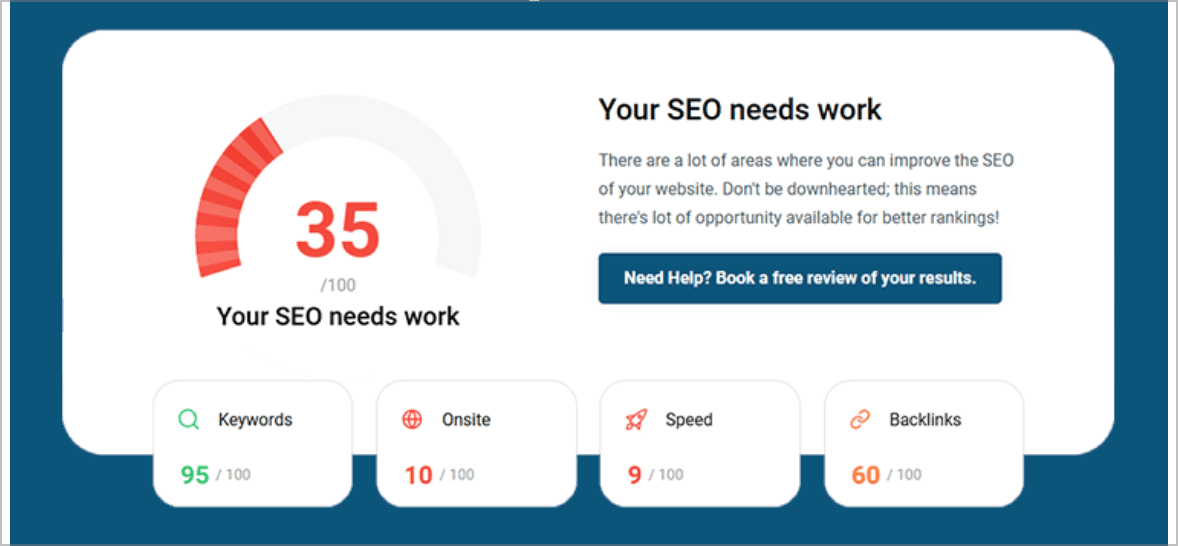
If your website has Analytics but no Search Console, you are only seeing what happens after people arrive.
We can help you connect the missing piece, check what Google is actually showing, and turn that search data into sensible next steps instead of another dashboard nobody looks at.